Switch to the app the note should follow
Bring Xcode, Figma, Zoom, your browser, or another Mac app to the front. Keep Lucid Notes running in the background. The active app determines which app the new card will belong to.
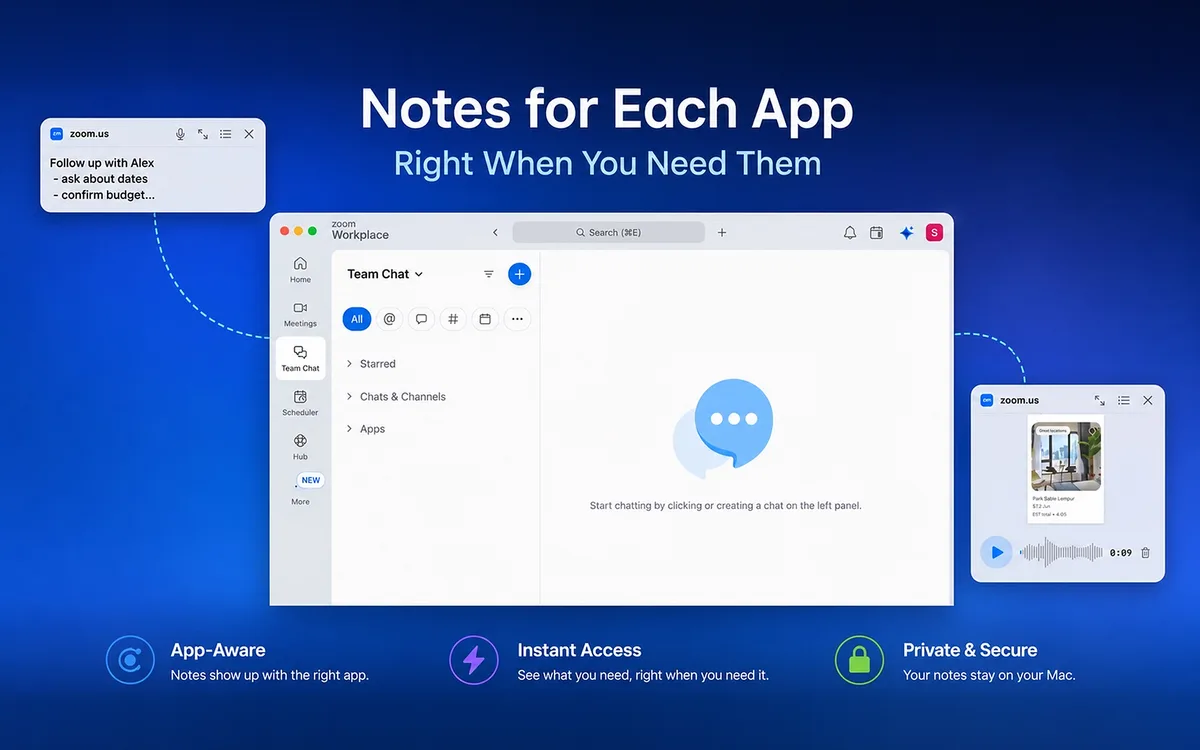
Keep review notes with Xcode, design feedback with Figma, or talking points with Zoom. Lucid Notes can attach a floating card to the app you are using and bring it back when you return to that app.
Free on the Mac App Store · macOS 14+
Keep Lucid Notes running, switch to the app you want to attach a note to, and press ⌘⌥N. Type into the contextual card, then click back into the app or press Escape to save. The card follows that app: it hides when you switch away and returns when the app is active again.
The attachment is to the app itself. A card for your browser is shared across that browser’s tabs and windows; it does not follow an individual website. Likewise, an Xcode card is associated with Xcode, not with one project or source file.
Install and open Lucid Notes on macOS 14 or later. Start with an ordinary work app, rather than an excluded app such as System Settings or a password manager.
Bring Xcode, Figma, Zoom, your browser, or another Mac app to the front. Keep Lucid Notes running in the background. The active app determines which app the new card will belong to.
Press ⌘⌥N, the default Capture Note (Contextual) shortcut. You can also open the Lucid Notes menu-bar icon and choose New Note for the active app. If you use a custom shortcut, check Settings → Shortcuts → App-Contextual Notes.
Type the points you need next time you use this app. Click back into the app or press Escape to save the card. Return starts a new line, so you can keep several short points in one note.
Focus another app: the first app’s card hides. Return to the original app to see it again. Switching tabs, documents, or windows within the same app keeps the same app-level context.
In Xcode, keep a short review checklist such as checking error states, keyboard shortcuts, and accessibility labels. In Figma, keep recurring design-review points. In Zoom, keep a meeting structure or the questions you want to remember.
If a note concerns only one project or customer, name that project in the card. Lucid Notes will still show it whenever that app is active, so avoid assuming that switching projects changes the attached notes.
First check that Lucid Notes is running and your target app is active. Then open Settings → Shortcuts and check Capture Note (Contextual). A customized or conflicting shortcut may differ from ⌘⌥N.
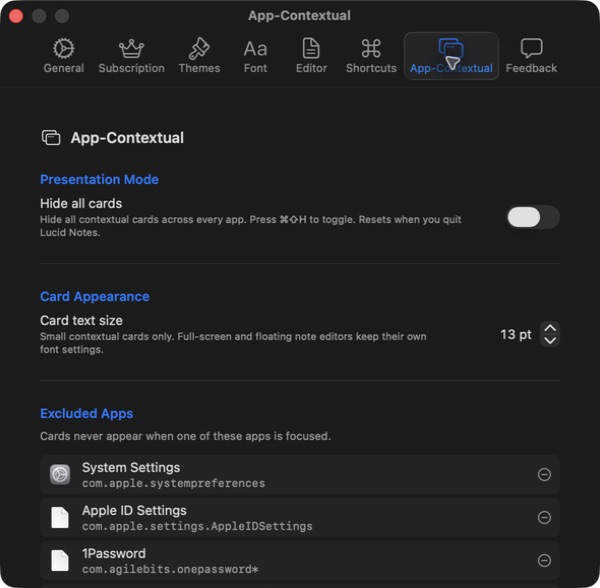
In Settings → App-Contextual, check whether Hide all cards is enabled or the target app appears in Excluded Apps. Those settings intentionally prevent cards from appearing. The free tier also limits how many apps and cards you can use.
Use Settings → App-Contextual → Presentation Mode → Hide all cards, or the default ⌘⇧H shortcut, before sharing your screen. This hides contextual cards across apps; it is not a control for hiding the regular notes window or an open teleprompter.
Presentation Mode resets when you quit Lucid Notes. Check the setting again when starting another session. Excluded Apps is useful for apps where you never want cards to appear, such as password managers.
Try app-contextual notes in Lucid Notes. Free for up to 3 apps, with 2 notes per app.
Yes. The free tier allows contextual notes for 3 apps, with 2 notes per app. You can create contextual notes even after reaching the regular 5-note limit. Pro removes the contextual app and note limits.
No. Lucid Notes attaches contextual cards to a Mac app. All tabs and windows belonging to that app use the same app context. It does not attach cards to individual URLs, files, folders, documents, or projects.
There is no separate Save button when capturing a text card. Type your note, then click outside the card or press Escape to commit it. Return inserts a new line.
Contextual cards are designed to accompany the attached app. They hide when Lucid Notes itself or a different app is active, and return when the attached app becomes active again, unless Presentation Mode or an exclusion is hiding them.
Do not assume a visible contextual card is hidden from screen capture. Use Presentation Mode to hide the cards before sharing, and check the share preview. Sharing only a particular app window is another way to control what the audience sees.